.png?width=500&height=141&name=BRANDING%20ELEMENTS%20LIBRARY%20(11).png)
Before You Start: Which Login Method Does Your Organization Use?
Regular Aclarian Login
You log in with your email address and a password you created or were prompted to set up when your account was created. If you forgot your password, follow the steps below to reset it.
Microsoft SSO Login
Your organization uses Microsoft to authenticate. You click Sign in with Microsoft on the login screen and use your Microsoft credentials. You do not have a separate Aclarian password and do not need to reset one.
If you are not sure which method your organization uses, contact your administrator or Client Support.
Aclarian Login Only - Resetting Your Password
Step 1: Go to Your Portal Login Page
Use the correct link for your environment:
- Production: https://portal.aclarian.com
- UAT (testing): https://portal-uat.aclarian.com
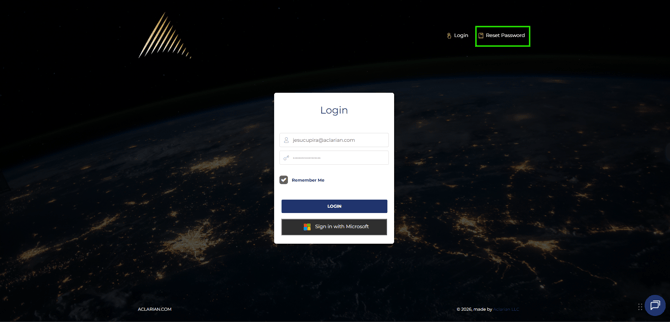
Step 2: Click Reset Password
On the login screen, find the Reset Password button. It is usually located in the top right corner. Click it.
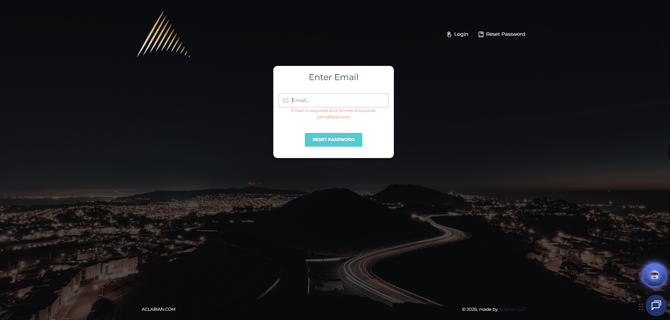
Step 3: Enter Your Email Address
Enter the email address associated with your Aclarian account when prompted.
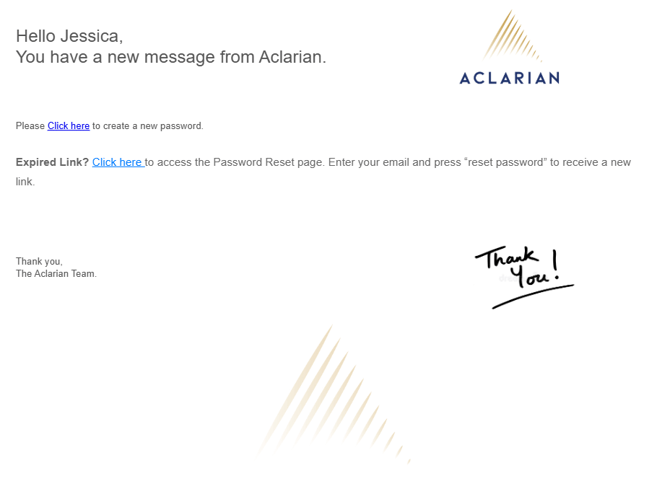
Step 4: Check Your Email
A password reset link will be sent to your email. Open the email and follow the instructions to set a new password.
If you do not see the email, check your spam or junk folder.
Step 5: If Your Link Expires
Reset links expire after a set period of time. If yours has expired, repeat the steps above to request a new one.
Important: Account Lockout After Failed Login Attempts
If you enter an incorrect password too many times, your account will be locked after 10 failed attempts.
If this happens, contact Client Support using the information below. Do not continue trying to log in, as additional attempts will not help once the account is locked.
If You Did Not Receive a Password Setup Email
When a new Aclarian account is created, the system normally sends an email prompting you to set up your password.
However, if your organization uses Microsoft SSO, your administrator may have turned off that email. This is a setting called Suppress Password Reset Emails. When it is enabled for your organization, new users will not receive the password setup email. Instead, you will receive a welcome email directing you to sign in with Microsoft.
If you were added as a new user and did not receive any email at all, contact your organization's Aclarian administrator to confirm how you are expected to log in.
Using Microsoft Login
If your organization uses Microsoft SSO, sign in by clicking Sign in with Microsoft on the login screen. You do not need to enter an Aclarian email address or create a password.
If you have trouble signing in with Microsoft, contact your organization's IT team or Aclarian administrator. The issue is likely related to your Microsoft account permissions, not your Aclarian account.
Quick Tips
- Check your spam or junk folder if the reset email does not arrive within a few minutes
- Use the correct portal link for your environment. Production and UAT have different login pages.
- Production: https://portal.aclarian.com
- UAT (testing): https://portal-uat.aclarian.com
- If your account is locked after 10 failed attempts, contact Client Support
- Live Chat
- Email - Production Clients - clientsupport@aclarian.com -
- Email - UAT Clients - implementationsupport@aclarian.com
- If you are not sure whether your organization uses SSO, ask your administrator
Need Help
If you have questions about resetting your password, contact the Aclarian Client Support team for assistance.
- Email: clientsupport@aclarian.com
- Contact your assigned Customer Support liaison
- For urgent issues, use the Live Chat Feature