.png?width=500&height=141&name=BRANDING%20ELEMENTS%20LIBRARY%20(11).png)
Training Video Available▶️
Please watch the video for a complete demonstration:
Check request
Purpose: Use the Check Request form when you need to make a payment that is not tied to a Purchase Order (PO). This is the most common form for one-time or non-PO payments.
1. Go to the Payments module → Forms → Check Request. 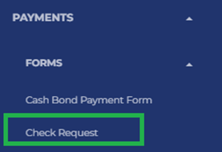
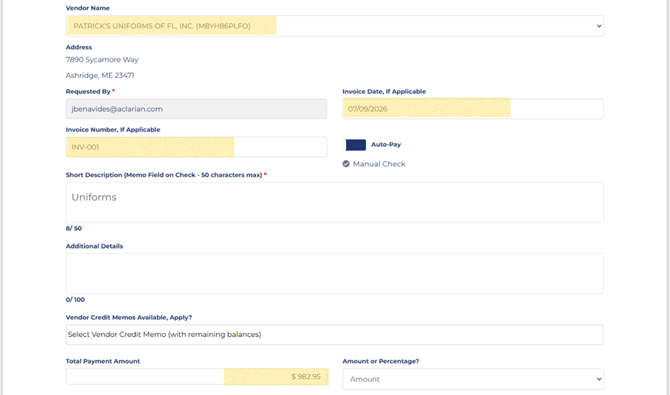
2. Fill in the required fields (marked with a red asterisk *):
-
-
- Vendor Name* — Search and select the vendor from the list of active Vendors
- Invoice Date — Date shown on the vendor’s invoice.
- Invoice Number — Vendor’s invoice/reference number.
- Short Description* — Brief description of the payment (this appears on the check stub).
- Total Payment Amount* — Enter the full amount to be paid.
-
-
-
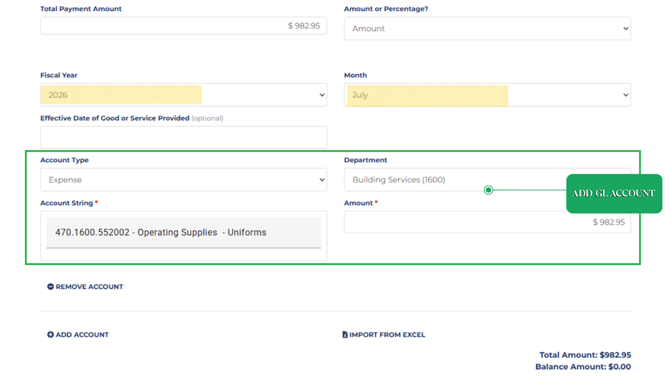
- Select Account Type (usually Expense).
- Select Department.
- Select the correct GL String (account).
- Enter the Amount for that account.
- Repeat for additional accounts if needed.
-
Make sure the Balance Amount at the bottom reaches $0.00.
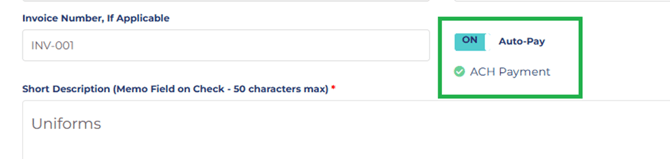
4. (Optional) Turn on Auto Pay if you want the system to pay via ACH (if bank info exists) or manual check.
Attach supporting documents:
-
Drag and drop or browse for the invoice, receipt, or backup documentation.
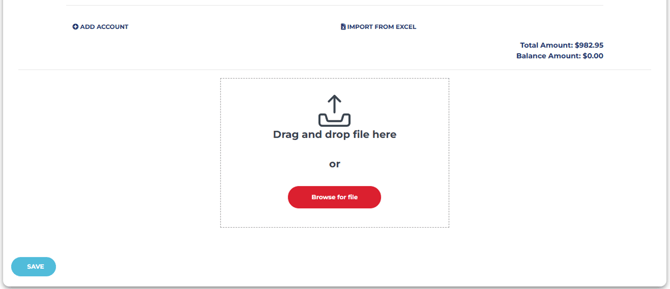
6. Click Save at the bottom (the form becomes a Draft).
7. Review all information carefully, then click Submit for Approval.
For more details you can watch our training video: Check Request Form Training Video