.png?width=500&height=141&name=BRANDING%20ELEMENTS%20LIBRARY%20(11).png)
Training Video Available▶️
Please watch the video for a complete demonstration:
Contract Basics video
Purpose: Record vendor contracts with relevant documents, amounts, and expiration details.
Where to find the form
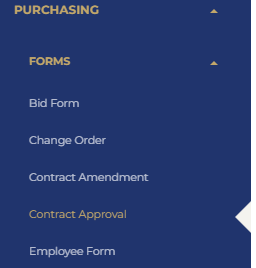
1. Go to the Purchasing module → Contracts → Contract Approval Form.
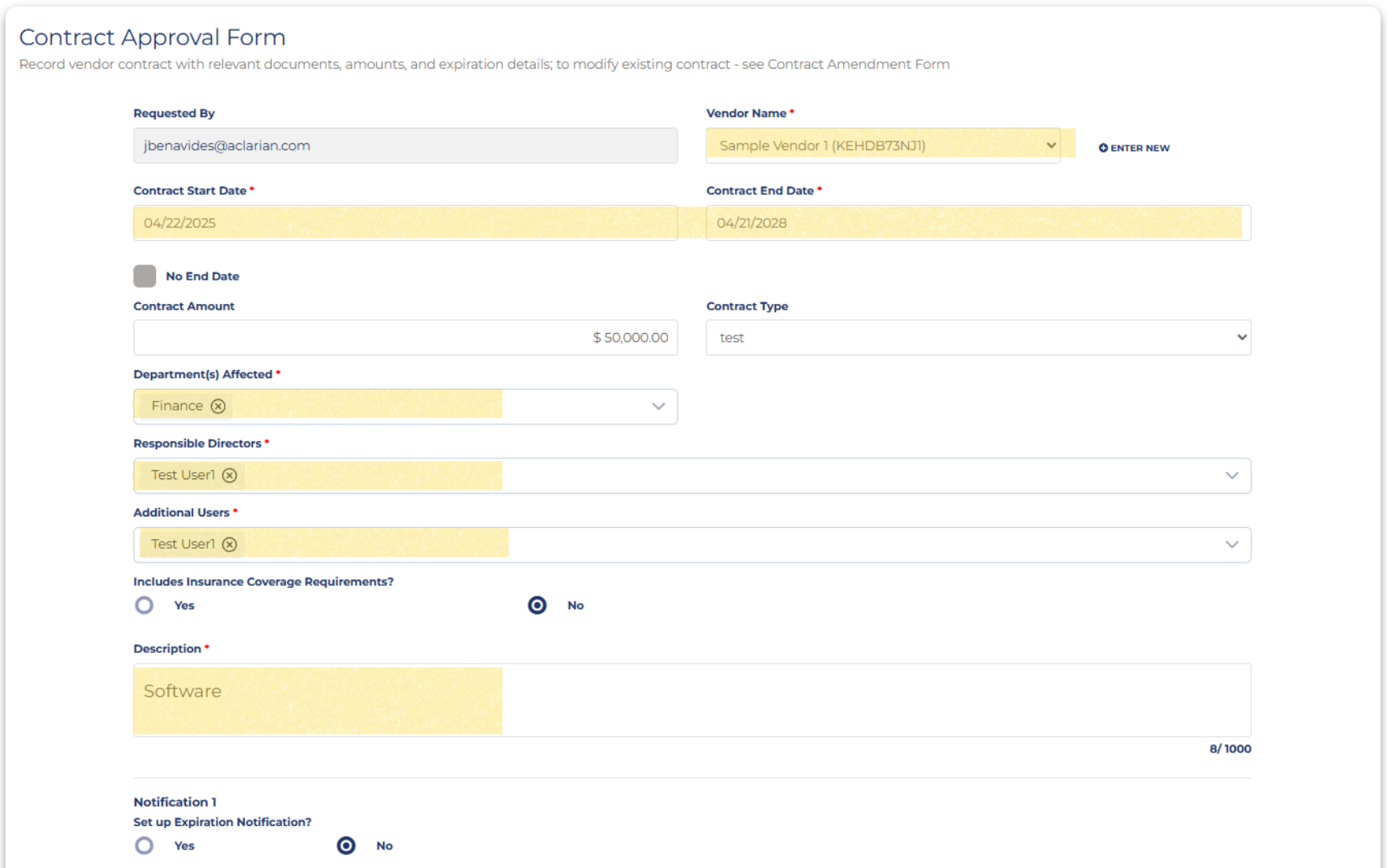
2. Fill in the fields (required fields are marked with a red asterisk * ):
-
Vendor Name* — Select an existing vendor from the dropdown (strongly recommended for full integration with purchase requisitions and payments).
-
Contract Start Date* — Enter the start date of the contract.
-
Contract Amount — Enter the total contract value (optional but recommended for tracking).
- Contract Type — Select from the dropdown
- Department(s) Affected* — Select the department(s) impacted by this contract.
- Responsible Directors*
- Additional Users* — Add other users who need visibility
- Includes Insurance Coverage Requirements? — Select Yes or No. If Yes, additional fields for insurance policy dates and details will appear.
- Description* — Provide details about the contrac
4. Set up Expiration Notifications (Recommended)
Enable “Set up Expiration Notification?” and click + ADD NOTIFICATION.
Configure:
5. Attach Documents
6. Click SAVE at the bottom of the form (saves as a draft).
7. Review all information. When ready, submit for approval through the workflow (if configured in your organization).